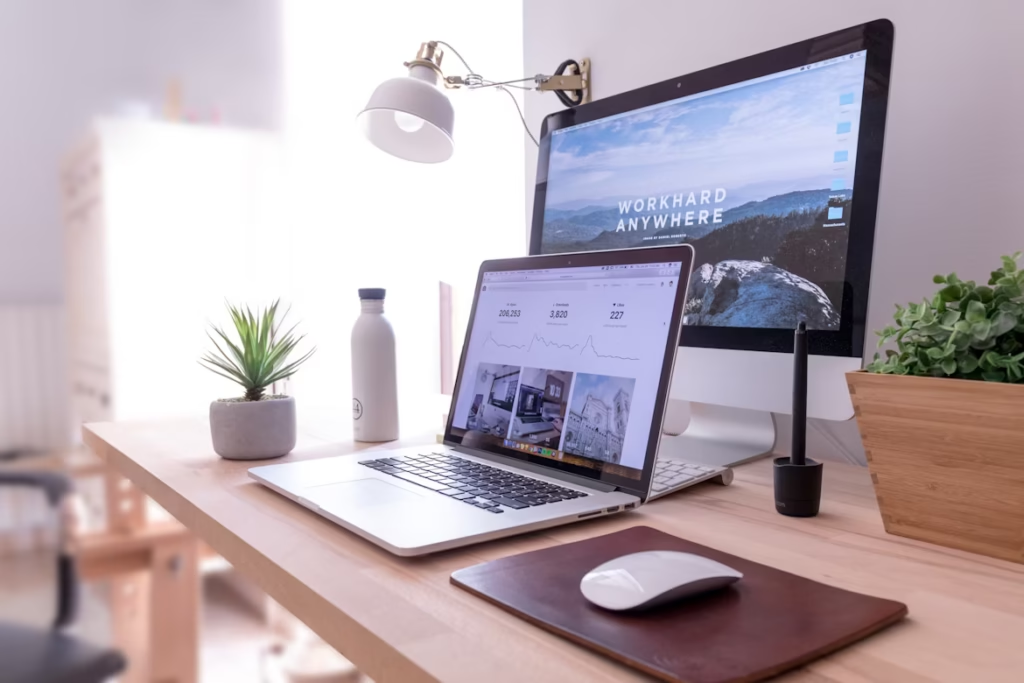
A dual monitor setup is one of the cheapest upgrades you can make to a home office. Instead of juggling windows on one cramped screen, you get a second canvas where reference material, chat or video calls can stay open while you work. The idea is simple, but the details decide whether the result feels calm and fast or awkward and tiring. This guide walks you through a practical dual monitor setup from start to finish: whether it is worth it, what to buy, how to arrange the screens, how to configure the software and which mistakes to avoid.
It is written for remote workers, freelancers, students and anyone who spends hours at a desk. You do not need expensive gear or technical skills. You need a clear plan, a tape measure and about an hour.
Table of Contents
Is a Dual Monitor Setup Worth It?
For most desk-based work, yes, but not for everyone. The main benefit is less switching. When you can see your main task and your supporting material at the same time, you spend less effort hunting through tabs and minimised windows. Writers keep research beside a draft. Designers keep tools on one screen and the canvas on the other. Accountants keep a spreadsheet next to a bank portal. Developers keep code beside documentation and a terminal.
Anyone who attends many video meetings gains something too. You can keep the call on the second screen, look roughly toward your camera and still take notes on the main one. If you are tuning your calls, our guide to a better video call setup pairs well with this one.
There are cases where a second screen adds little. If your work is mostly one focused task, such as writing a long document with nothing else open, a single good monitor may be enough. If your desk is tiny or you travel constantly, a second monitor can become clutter. A quick test is to watch how often you switch windows in a normal day. If you flip between two apps dozens of times, a dual monitor setup will probably pay for itself in saved effort. If you rarely switch, spend the money on a better chair or a single larger display instead.
One honest caution: more screen space does not automatically mean more productivity. It can also mean more distraction if you leave chat, email and social feeds open all day. Decide in advance what lives on each screen, and the extra space will help rather than tempt you.
What You Need Before You Start
Before you buy anything for your dual monitor setup, take stock of what you already have. A quick audit prevents the most common surprise: arriving home with a monitor that your computer cannot connect to.
Check your computer’s video outputs. Look at the sides and back of your laptop or desktop. Typical ports include HDMI, DisplayPort and USB-C (often marked with a small lightning or display symbol when it can carry video). Many modern laptops can drive two external screens, but some entry-level models support only one. The manufacturer’s specification page usually lists how many external displays are supported, so check it before you commit.
Check the monitor inputs. A monitor needs an input that matches what your computer can send. If your laptop has only USB-C and your monitors have only HDMI, a USB-C to HDMI cable or a small dock solves it. A dock also lets you plug in power, keyboard and mouse with a single cable, which is handy if you move between a desk and a sofa.
Measure your desk. Two 24-inch monitors are typically a little over a metre or about four feet wide when placed side by side, depending on bezel thickness. Measure your desk depth too. You want enough room to sit about an arm’s length from the screens.
Decide on mounts. Many monitors come with a fixed stand that cannot be raised high enough. A desk-mounted arm frees space, lets you fine-tune height and makes rotating a screen vertical easy. Check that your monitor has standard mounting holes on the back, often called a VESA pattern, and that your desk can take a clamp.
Finally, plan your cables. A short power strip, a few cable ties and some labels make the finished desk look tidy and make future changes less painful. If you work on the road as well, our list of tech gear for digital nomads shows what to pack alongside a portable screen.
Choose Monitors That Match

The best dual monitor setup uses two screens that look as similar as possible. Matching size, resolution and, ideally, the same model makes your cursor travel smoothly, keeps text the same size on both screens and avoids the jarring colour shifts that appear when two different panels sit side by side.
Size. For a desk about 70 to 80 cm deep, monitors between 24 and 27 inches are a comfortable range for most people. Bigger screens need more distance, and a very large pair on a shallow desk forces you to turn your head constantly. Smaller 21 to 22 inch screens work if space is tight, but text can feel cramped.
Resolution. Full HD (1920 by 1080) is fine at 24 inches. At 27 inches many people prefer a sharper option such as QHD (2560 by 1440), because text looks crisper. What matters most is that both screens use the same resolution and scaling, otherwise windows change size as you drag them across.
Panel type. IPS panels typically offer wider viewing angles and steadier colour, which matters because you will look at the second screen from an angle. If you do colour-sensitive work, look for monitors that advertise good colour coverage and read independent reviews rather than relying on marketing claims.
Bezels. Thin bezels make the gap between the two screens smaller, which feels more natural when you drag windows across. This is a nice-to-have rather than a must.
Mixing screens. If you already own one monitor, buying a second identical model is ideal but not always possible. When you cannot match, try to at least match the size and resolution, and use your operating system’s colour settings to bring brightness and warmth closer together. A mismatched pair will work, but you may notice the difference more on a white document than anywhere else.
Pick the Right Layout

There is no single correct way to arrange two screens. The right dual monitor setup depends on how you use each one. Three layouts cover most dual monitor setup situations.
Symmetrical, side by side. Both monitors sit directly in front of you, angled slightly inward so that the inner edges meet near the centre and you sit in the middle. This works well when you use both screens about equally, for example when comparing two documents or editing video with a timeline on one side and a preview on the other. The trade-off is that you will turn your head more.
Primary and secondary. One monitor sits straight ahead and does most of the work. The second sits off to the side at a slight angle and holds supporting material such as email, chat, a music player or notes. This is the layout most remote workers end up with, because it keeps your neck neutral most of the day. Put the secondary screen on the side of your dominant hand if you reach for a reference more often, or on the other side if you rarely touch it.
One landscape, one portrait. Rotating the second screen to portrait is brilliant for long documents, code, web pages and chat feeds, because you see far more lines without scrolling. It does require a monitor that can rotate, or an arm that allows it, and it is a poor fit for spreadsheets with many columns. Many people keep the portrait screen on the side and the landscape one in the centre.
Whichever layout you pick, keep the tops of both screens at the same height and the gap between them as small as you can. Uneven heights force your eyes to refocus every time you glance across, which adds up over a long day.
Position the Screens for Comfort

A well-placed dual monitor setup can reduce neck and eye strain, while a badly placed one can make both worse. The principles are the same as for a single screen, applied twice.
Height. Official workplace guidance, such as the monitor guidance from the US Occupational Safety and Health Administration, suggests that the top of the screen should typically sit at or slightly below eye level when you are seated upright, so that your gaze angles slightly downward. Raise each monitor on its stand, an arm or a stable stack of books until that is true.
Distance. A common rule of thumb is roughly an arm’s length from your eyes to the screen, adjusted a little for monitor size and your eyesight. If you find yourself leaning forward to read, increase the text scaling in your settings instead of moving closer.
Angle. Tilt each screen back slightly so that the surface is roughly perpendicular to your line of sight. This also reduces reflections from windows and lamps. Place monitors so that a window is beside them, not directly behind or in front of them.
Where your body points. Sit so that your nose lines up with the screen you use most. If you spend most of the day on the primary monitor, centre yourself on it, not on the gap between the two. Turning your body slightly toward the screen you use most is better than constantly twisting your neck.
Comfort is more than geometry. Take regular breaks, look away from the screens often and move your body. Our guides to building an ergonomic desk setup, reducing eye strain from computer work and desk stretches for remote workers cover the habits that matter just as much as monitor height. If you have persistent pain or vision problems, speak to a qualified health professional.
Connect and Configure Your Screens
With the hardware in place, the software side of a dual monitor setup takes only a few minutes. Connect each monitor to a video output, plug in power and switch them on. Make sure each monitor is set to the right input source using its on-screen menu. Most computers detect the new displays automatically, but you will still want to check three settings.
Display mode. You normally want your screens set to extend, which treats them as one larger desktop. The alternative, duplicate (sometimes called mirror), shows the same picture on both and is mainly useful for presentations. On Windows, the official Microsoft support page on using multiple monitors explains how to open the display settings, choose extend and drag the numbered screens so that they match their physical positions. On a Mac, the equivalent options live in the Displays section of System Settings, where you can arrange screens and choose which one holds the menu bar.
Arrangement. Drag the on-screen rectangles so that they match the real layout, including any height difference. If the arrangement is wrong, your mouse will leave one screen in a surprising place. Test by moving the pointer slowly across the join.
Resolution, scaling and refresh rate. Select the recommended resolution for each monitor, then set the scaling so that text is the same apparent size on both. If one screen is sharper than the other, you may need a different scaling value on each. Also confirm that each screen uses its highest supported refresh rate, because the setting sometimes defaults lower after you plug in a new cable.
Primary display. Choose which screen holds your taskbar, dock or menu bar. This is also where many apps open by default, so pick the monitor directly in front of you.
If a screen stays black, work through the basics: reseat the cable at both ends, try a different port or cable, check the input source on the monitor and restart the computer. Updating graphics drivers resolves many stubborn cases. Keep the process calm and change one thing at a time so you know what worked.
Organise Windows and Workflow
Hardware gets a dual monitor setup running, but habits make it useful. Without a system, you can end up with a messy pile of windows spread over twice as much space.
Give each screen a job. A simple rule works for most people: the main screen holds the task you are actively doing, and the second screen holds things you refer to. For example, a writer might keep a draft on the main screen and research on the second. A support agent might keep tickets on one and a knowledge base on the other. Write your own rule down and stick to it for a week.
Learn window shortcuts. Both Windows and macOS include ways to snap windows into halves or corners and to move a window to the other screen with a keyboard shortcut. Spend ten minutes learning the ones in your operating system’s help pages. They make the extra space feel effortless and are far faster than dragging with a mouse.
Keep distractions off the main screen. It is tempting to park chat and email on the second screen and glance over constantly. Try muting notifications during focus blocks, or move the communication apps to a separate desktop that you only open at set times. If you use timed focus sessions, our guide to the Pomodoro technique for remote workers fits naturally with a two-screen desk.
Use the extra space for video calls sensibly. Put the meeting window on the screen closest to your webcam so that you appear to look at the people you are speaking to. Keep notes on the other screen. This small change makes calls feel more natural for the people on the other end.
Finish the day deliberately. A second screen makes it easy to leave work open all evening. Closing windows, saving files and switching off both monitors is a clear signal that the workday has ended. If you struggle with this, try our work from home shutdown routine.
Dual Monitor Setup With a Laptop

Many people build a dual monitor setup around a laptop rather than a desktop tower. This is a very practical approach because you can unplug and take your computer with you. There are two common ways to arrange it.
Laptop open as a second screen. The laptop sits on a stand beside one external monitor. This gives you two screens for the cost of one monitor and works if your laptop supports only one external display. The downside is that the laptop display is usually smaller and lower than the monitor, so raise it on a stand and use a separate keyboard and mouse.
Laptop closed, two external monitors. The laptop sits to the side or under the desk, connected through a dock or cables, and both monitors do the work. This is neat and ergonomic, but check that your laptop is set to stay awake when the lid is closed and that it can drive two displays at once. Keep airflow in mind. A closed laptop that is working hard can run warm, so do not bury it in a drawer.
For both options, a dock or a single USB-C or Thunderbolt connection can carry video, power and accessories through one cable, which makes arriving at and leaving your desk quick. Confirm that the dock you choose supports two displays at the resolution you want, because some limit the second screen when the first is running at high resolution.
Protect your work too. A tidy desk with two big screens still depends on a single computer, and drives fail. Follow a simple routine such as the 3-2-1 backup rule, and keep your home network safe with the steps in our guide to securing your home Wi-Fi network. If you are curious about what else can sit on a modern desk, see our overview of AI gadgets for digital nomads.
Common Mistakes and Quick Fixes
Most problems with a dual monitor setup come from a short list of avoidable errors. Check yourself against these before you decide a setup does not work for you.
Screens at different heights. If one monitor sits lower than the other, your head bobs up and down all day. Fix it with an arm, a riser or a stack of sturdy books under the lower stand so the tops line up.
Centring on the gap. Sitting between two screens means you always look at an angle. If one monitor does most of the work, centre yourself on that one and treat the other as a side panel.
Mismatched scaling. Text that is huge on one screen and tiny on the other causes constant squinting and window resizing. Check the scaling setting for each display and match the apparent text size, even if the numbers differ.
Screens too close. Monitors pushed hard against the back of a shallow desk make you lean forward. Bring the desk away from the wall, use a clamp-on arm to gain depth or move the screens further back and increase the font size.
Glare and brightness. A bright screen in a dim room tires your eyes, and a window behind a monitor adds glare. Adjust brightness to match the room, and place lamps so they do not reflect on the glass.
Buying before checking ports. Always confirm that your computer can drive two external displays and which cables you need before you order. A small adapter is cheap, but discovering a limit after the monitors arrive is annoying.
Letting the second screen become a distraction. If you notice yourself drifting to social feeds on the spare screen, move those apps off it or use a website blocker during work blocks. The goal of a dual monitor setup is focus, not more places to look.
Frequently Asked Questions
Do both monitors need to be the same size?
No, but matching size and resolution gives the smoothest experience. Mixed sizes still work. If you cannot match them, align the tops of the screens or the centres of the screens so the transition feels natural, and set scaling so text looks similar on both.
Can my laptop run two external monitors?
It depends on the model. Some laptops support two external displays directly, some need a dock, and some support only one. Check the manufacturer’s specification page for the number of supported displays. If your laptop supports only one external screen, using the laptop’s own display as the second screen is a practical workaround.
What is the best monitor size for a dual monitor setup?
For most desks, two 24 to 27 inch monitors are a comfortable range. Choose the larger size if your desk is deep and you like sharper text at higher resolution. Choose the smaller size if your desk is shallow or you want a compact footprint.
Is a dual monitor setup bad for your eyes or neck?
Not by itself. Problems usually come from poor placement: screens too high, too low, too close or at different heights. Keep the tops near eye level, sit an arm’s length away, take regular breaks and look into the distance often. If you have discomfort that continues, consult a health professional.
Should I use extend or duplicate mode?
Use extend for everyday work, because it gives you more desktop space. Use duplicate when you need the same picture on both screens, such as when presenting to a room. You can switch between the two in your display settings at any time. You can read more about the technique in general terms in the Wikipedia article on multi-monitor setups.
Final Thoughts
A good dual monitor setup does not need to be fancy. Start by checking your ports, choose two similar screens, line the tops up near eye level, sit centred on the screen you use most and give each monitor a clear job. Then spend a few minutes on the display settings and window shortcuts, and keep the habits that protect your eyes, neck and attention.
Treat the first week with your new dual monitor setup as a trial. Adjust the angle, the height or the layout whenever something feels off, and do not be afraid to move the second screen to a different side or rotate it to portrait. The best arrangement is the one that you stop noticing because it simply works.